OpenVPN 2.4.12/2.5.11/2.6.22/2.7.6⚓︎
- Homepage: https://openvpn.net/community-downloads/
- Manpage: https://community.openvpn.net/openvpn/wiki
- Changelog: https://github.com/OpenVPN/openvpn/blob/release/2.7/Changes.rst
- Repository: https://github.com/OpenVPN/openvpn
- Package: master/make/pkgs/openvpn/
- Steward: @fda77
OpenVPN is a program for creating a Virtual Private Network (VPN) over an
encrypted TLS connection.
Frequently Asked Questions / Howto⚓︎
The documentation on the OpenVPN website is very good and detailed. Most
questions are likely answered there.
http://openvpn.net/faq.html
or
http://openvpn.net/howto.html
Many helpful pieces of information about OpenVPN can also be found
here in the IPPF wiki.
Configuration Guide⚓︎
This is a certainly not entirely complete guide to configuring the
OpenVPN package. It is intended to show how to create an OpenVPN
configuration with the corresponding GUI. What a VPN is and which
parameters are generally required cannot be found here.
Port Forwarding⚓︎
If, as is usually the case, the connection to the box should be
established over the internet, a "port forwarding" rule must be set up so
the box accepts the VPN packets. By default, OpenVPN uses IP port 1194
with UDP or TCP, and the box must accept packets for it. The obvious idea
of setting this up in the FritzBox GUI is prevented by AVM, because no
forwarding "to the box itself" is allowed. In principle, there are three
ways to "work around" this:
- Give the box an additional IP address that the GUI "knows nothing
about" and then configure forwarding to that IP through the GUI. The
Virtual IP package can be used for this, and a
forwarding rule to this IP can then be configured in the GUI. In the
meantime, some users have reported problems with this, probably
because of the package "startup order". As an alternative, it is
possible to create another IP in the
debug.cfg,
for example with the entry "ifconfig lan:1 192.168.178.253" in this
file. - Use the Freetz package avm-firewall. This makes it
easy to enter a port forward to IP address 0.0.0.0 in the Freetz GUI.
Afterwards, the port is open from the internet. Attention: select UDP
as the protocol. - Or edit the file "/var/flash/ar7.cfg", which requires access to the
box via telnet/SSH, but this is not a problem with Freetz. Although
this method is somewhat "riskier" because a wrongly edited file can
prevent the box from starting, I would recommend it.
I would suggest editing the file in RAM and then copying the file back
when everything has been done "satisfactorily". For "copying", use
"reading and redirection" here, because this file is not a normal file.
The easiest way to find the place to change is to first create a
meaningful port forward in the AVM GUI under Settings -> Advanced
Settings -> Internet -> Port Sharing -> New Port Sharing, for example
"MyShare". This can then be searched in the /var/tmp/ar7.cfg opened in
vi with /MyShare.
  cat /var/flash/ar7.cfg > /var/tmp/ar7.cfg
  vi /var/tmp/ar7.cfg

  # Mini guide to vi:
  # i  Insert  - enter something at this position
  # a  append  - enter something after this position
  # o          - insert line after the current line
  # O          - insert line before the current line
  # /<term>    - search forward for term
  # A  Append  - enter something at the end of the line
  # r  replace - replace the character under the cursor
  # x  delete  - delete the character under the cursor
  # <number>   - execute the next command this many times, e.g. 10x -> delete 10 characters
  # dd         - delete line
  # D          - delete rest of the line from current character
  # <ESC>      - leave edit / input mode
  # :w  write  - save changes
  # :q  quit   - leave vi
  # :q!        - leave vi even if there are unsaved changes
  #
  #
  # Now enter the share in vi and save the file with ":wq"

  # If everything was correct, this new file can be written back:
  cat /var/tmp/ar7.cfg > /var/flash/ar7.cfg
As a result, a rule of the following type must be added to the
"forwardrules", of course with the correct protocol (TCP/UDP) and the
correct port number. Note that lines must be terminated with ",", and
the last line with ";":
  ## if it is **not** the last line, like this,
  ## if it is **the last** line, please use ";" instead of ","
  "udp 0.0.0.0:1194 0.0.0.0:1194" ,
The format is:
Here, the first "0.0.0.0" means all incoming traffic; the second
"0.0.0.0" stands for "the box itself". The outgoing port here is the same
as the incoming one, the OpenVPN default port: 1194.
After editing ar7.cfg, the change must be applied, for example via
ar7cfgchanged or a reboot.
Relatively new: with this
patch, forwarding
to the box itself with 0.0.0.0 is also possible through the "normal" port
sharing in the AVM GUI.
Static Key⚓︎
The simplest variant is operation with a static key:
- only one client can connect to the server at a time
- both sides use the same static key for authentication
- a key is generated automatically when the service is started for the
first time - the key can be read and configured under "Settings -> Static Key"
(possibly first set the security
level) - IP assignment is done manually on client and server
Here is an example with the following data:
In the GUI, the server would then be configured like this:
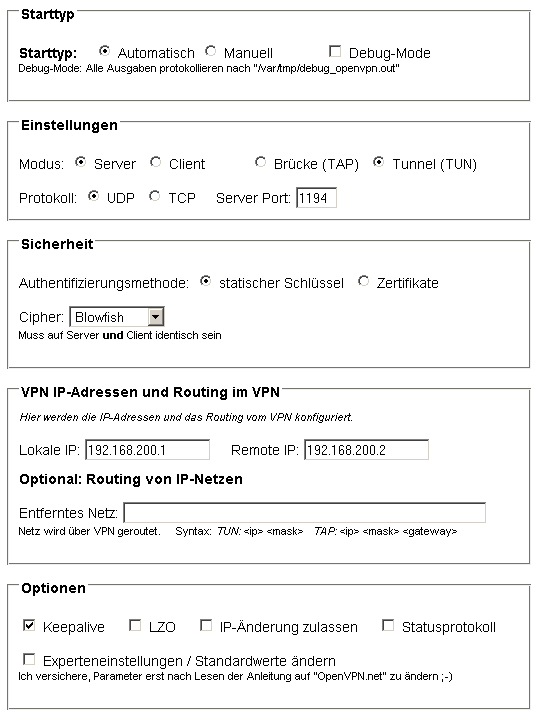
A matching Windows client configuration that can connect to the box:
  remote meinserver.dyndns.org
  proto udp
  dev tun
  ifconfig 192.168.200.2 192.168.200.1
  route 192.168.178.0 255.255.255.0
  secret "D:Eigene DateienOpenVPNfritzbox.key"
  tun-mtu 1500
  float
  mssfix
  nobind
  verb 3
  keepalive 10 120
Certificates⚓︎
If multiple simultaneous connections should be possible, certificates
must be used.
- multiple clients can connect to the server at the same time
- certificates must be created and stored on server and client
- the certificates are entered via "Settings"; assignment is shown
below - IP assignment is dynamic through the server
- simple client configuration via push/pull
How to create certificates easily and load them onto the box is explained
by, among others, this
wiki entry
and the official OpenVPN help about Public Key
Infrastructure. Certificates can also
be loaded onto the box with the help of the GUI. To do this, open the
Settings menu in Freetz and select the corresponding entry, for example
OpenVPN: Box Cert. Open the corresponding file, for example Server.crt,
with an editor and copy the content into the Freetz window. With Apply,
the GUI transfers the certificate to the box.
Note: Before entries can be made under "Settings", the security
level may first have to be changed accordingly. This can be done, for
example, with
echo 0 > /var/tmp/flash/security && modsave
Assignment of keys and certificates on the box:
  ------------- ----------------- ----------------------------------------
  GUI name      File name         Example / note
  Box Cert      <Name>.crt        server.crt or client01.crt
  Private Key   <Name>.key        server.key or client01.key
  CA Cert       ca.crt            Certificate of the CA
  DH Param      dh<Length>.pem    dh1024.pem or dh2048.pem
  Static Key    is generated      must be the same on server and client
  CRL           leave empty       list of revoked certificates
  ------------- ----------------- ----------------------------------------
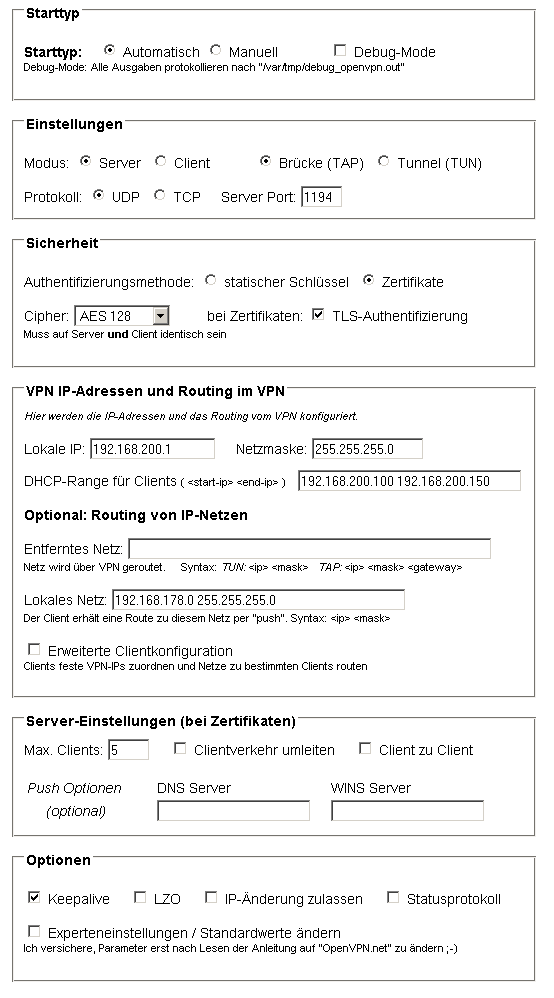
In the following example configuration, the server on the box should be
usable with several clients and run in TAP mode. Most of the client
configuration (IP and network settings, routing, and so on) is also done
by the server. The server assigns IP addresses to clients from
192.168.200.100 through 192.168.200.150. It also passes the client a
route to its LAN, the network 192.168.178.0. The pull in the client
configuration takes care of "fetching" these parameters.
Again, a client configuration that could connect to this server:
  remote meinserver.dyndns.org
  proto udp
  dev tap
  tls-client
  ns-cert-type server
  ca "D:Eigene DateienOpenVPNca.crt"
  cert "D:Eigene DateienOpenVPNclient.crt"
  key "D:Eigene DateienOpenVPNclient.key"
  tls-auth "D:Eigene DateienOpenVPNstatic.key" 1
  tun-mtu 1500
  mssfix
  nobind
  pull
  cipher AES-128-CBC
  verb 3
It should hopefully be self-evident that the server name after
"remote" and the paths to the certificates may need adjustment ;-).
It can be seen that the client has no own IP configuration or routing
entries; it receives these parameters from the server via pull. The
"key direction" for TLS authentication is also important here. Since
Freetz apparently uses the value "0" for this, the client must set the
value "1" accordingly.
Routing vs. Bridging⚓︎
For most use cases, routing (TUN) is the best choice, but in some cases
it can also make sense to implement the VPN network with a bridge (TAP).
A detailed description of the differences can be found on the OpenVPN
website.
Some advantages of bridging:
- after the connection is established, the client is in the same network
as the server - broadcasts are routed through the VPN tunnel, which has the advantage
that, for example, NetBIOS names can be resolved; useful for PING,
network shares, etc. - bridging routes all Ethernet protocols through the tunnel (IPv4,
IPv6, IPX, AppleTalk, etc.)
Some disadvantages of bridging:
- less efficient than routing (slower)
- all broadcasts go through the network
To implement real bridging with the FritzBox, it is necessary to add the
tap0 adapter to the list of bridged adapters of the FritzBox. This is
again done in ar7.cfg, which must be changed using the procedure
described above. Under the point "brinterfaces" -> interfaces, the tap0
adapter must be added:
So again:
Then search for /brinterfaces and insert the entry "tap0" before the
semicolon.
  brinterfaces {
                name = "lan";
                dhcp = no;
                ipaddr = 192.168.178.1;
                netmask = 255.255.255.0;
                dstipaddr = 0.0.0.0;
                interfaces = "eth0", "usbrndis", "tiwlan0", "wdsup0",
                             "wdsdw0", "wdsdw1", "wdsdw2", "wdsdw3", "tap0";
                dhcpenabled = yes;
                dhcpstart = 192.168.178.20;
                dhcpend = 192.168.178.100;
Finally, once more:
The configuration in the OpenVPN GUI could then look like this for the
FritzBox standard:
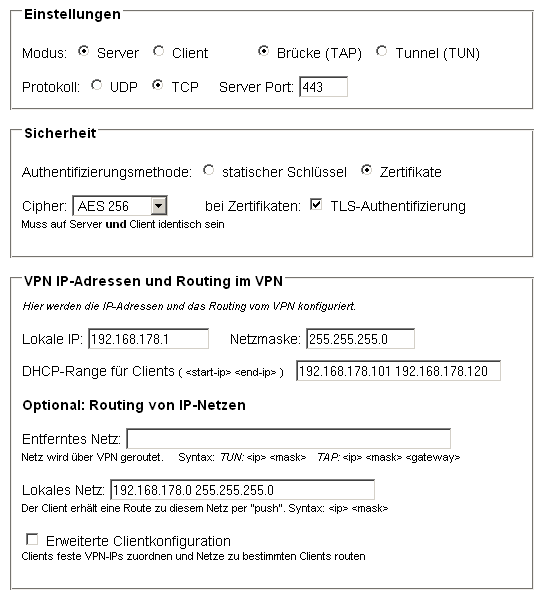
The Windows client configuration for this looks like this:
  client
  dev tap
  #udp/tcp depending on what was selected
  proto tcp
  #Port according to the configuration
  remote meinserver.dyndns.org 443
  nobind
  persist-key
  persist-tun
  #here the certificates/keys, named as during creation
  ca ca.crt
  cert client01.crt
  key client01.key
  # for TLS-Remote "ServerBox1", named as during creation
  tls-remote ServerBox1
  tls-auth static.key 1
  auth SHA1
  cipher AES-256-CBC
  comp-lzo
  verb 3
CRL⚓︎
CRL stands for "certificate revocation list" and provides a way to revoke
issued certificates and thus make them invalid. There is currently a bug
in Freetz (ticket #1578), so a CRL can only be made to work with some
manual work via the telnet console or Rudi shell. Anyone who does not
trust themselves to create a CRL manually can use Kleopatra (Windows /
http://www.gpg4win.de/) or TinyCA (Linux /
http://tinyca.sm-zone.net/), GUI-based
certificate managers that support creating a CRL.
Troubleshooting: A Few Tips If It Does Not Work Right Away⚓︎
Usually one immediately tries the most difficult case: connecting two
networks over the internet with certificates and TLS authentication, and
testing by trying to mount a share on the file server in the other
network ;-).
Great if it works immediately; if not, there are "infinitely" many
possible errors...
Therefore the appeal: approach the whole thing slowly!
- The first "error candidate" is access over the internet, which must
be enabled via a "virtual IP" or in the file "/var/flash/ar7.cfg"
(see above; I personally prefer the second method). This factor can
be checked by first testing the connection "internally", meaning via
the LAN interface. If it works this way but not over the internet, the
error has been narrowed down. - If it is something else, only a point-by-point comparison of the
configurations helps. Basically, there are only two types of
parameters: those that must be identical and those that must appear
"mirror-reversed".- The "identical" ones are, for example, cipher, "comp-lzo",
tls-auth, the protocol used (UDP/TCP), and the port. - "Mirror-image" are the IPs with TUN, the routing entries, the
server/client parameters such as "tls-server/tls-client", push,
and pull.
- The "identical" ones are, for example, cipher, "comp-lzo",
- The config on the box can most easily be output in the
Rudi shell by executing
cat /mod/etc/openvpn.conf* there. This config can then be compared
well with the config of the "other side". -
First aid for more information, for example if the output only says
Starting OpenVPN ...failed. In the Rudi shell, if
openvpn is no longer running, the startup messages should provide
hints about the error like this, at the latest after ten seconds: -
A typical error pattern, I would guess at least 20% of all problems
;-): the connection is established, but client and server cannot reach
each other by ping; "nothing goes through the VPN". The most common
cause is that "comp-lzo" is enabled on only one side.
- Another note for "Windows users": if the computer that has a share is
not in the same network, for example connected via VPN, the firewall
must allow access from another network, and Windows name resolution
does not work. If the share can be used in the LAN in the form
The_PC_with_sharemy_data, this is not possible over the VPN. There
are then two options:- Use the IP address, for example 192.168.178.12my_data.
- Use the file
system32driversetclmhosts and
enter the computer name and IP there. Then the share can continue
to be used by name.
Encryption: Which "Cipher"?⚓︎
Traffic between client and server is normally transmitted encrypted to
protect the contents from being spied on. The encryption algorithm is
chosen through the "Cipher" selection box. At the moment, these ciphers
can be selected there, with the OpenVPN designation in parentheses as it
was adopted from OpenSSL:
To investigate the load produced on the box by encryption, I once ran a
"performance comparison" of the algorithms on a Speedport 701 with
openssl speed des aes blowfish, only for the selectable options:
The 'numbers' are in 1000s of bytes per second processed.
type              16 bytes     64 bytes    256 bytes   1024 bytes   8192 bytes
des cbc           1827.26k     1909.78k     1931.44k     1935.13k     1888.51k
blowfish cbc      2940.90k     3187.67k     3257.75k     3245.84k     3108.06k
aes-128 cbc       1936.58k     1984.45k     2019.82k     2004.45k     1940.50k
aes-256 cbc       1500.48k     1532.26k     1541.70k     1510.14k     1494.16k
It can be seen that among the available algorithms, "Blowfish" has the
highest throughput. This could be of interest for intensive use. For more
detailed comparisons of algorithms, see for example
Wikipedia.
For comparison, the numbers from a 7320:
The 'numbers' are in 1000s of bytes per second processed.
type             16 bytes     64 bytes    256 bytes   1024 bytes   8192 bytes
des cbc           2256.44k     2403.96k     2394.38k     2398.15k     2416.23k
des ede3           838.01k      863.05k      852.47k      864.63k      860.43k
blowfish cbc      5949.83k     6772.94k     6777.60k     6852.09k     6858.03k
aes-128 cbc       4218.86k     4641.06k     4719.34k     4722.43k     4723.41k
aes-192 cbc       3731.79k     4053.84k     4106.21k     4079.90k     4176.53k
aes-256 cbc       3312.71k     3596.58k     3627.24k     3628.52k     3678.10k
... and from a 7390:
The 'numbers' are in 1000s of bytes per second processed.
type             16 bytes     64 bytes    256 bytes   1024 bytes   8192 bytes
des cbc           3020.13k     3136.60k     3153.10k     3178.21k     3166.10k
des ede3          1104.84k     1119.55k     1127.09k     1129.19k     1126.40k
blowfish cbc      8043.34k     8744.39k     8965.62k     8973.62k     8947.55k
aes-128 cbc       5597.86k     6122.27k     6304.22k     6262.31k     6254.70k
aes-192 cbc       4932.01k     5308.92k     5450.89k     5446.16k     5429.97k
aes-256 cbc       4388.37k     4711.52k     4812.80k     4817.99k     4798.96k
DNS & Redirect all clients' traffic⚓︎
I wanted to monitor all traffic coming from my Android device, so I
route all my traffic through openVPN and am using tcpdump to see the
traffic. I discovered that DNS going to my mobile provider is blocked
via by my DSL provider (of course). To circumvent that problem I tried
to specific a DNS server using openVPN, but that didn' work. Eventually
I fixed this problem by using iptables to re-route DNS to the local DNS
server (dnsmasq) like this:
iptables -A PREROUTING -i tun0 -p tcp -m tcp --dport 53 -j DNAT --to-destination 192.168.178.1
iptables -A PREROUTING -i tun0 -p udp -m udp --dport 53 -j DNAT --to-destination 192.168.178.1
It is interesting to see what Android is doing ...
Discussion⚓︎
Questions and comments about this package are discussed in this
thread.
New, Simple GUI (GUI2)⚓︎
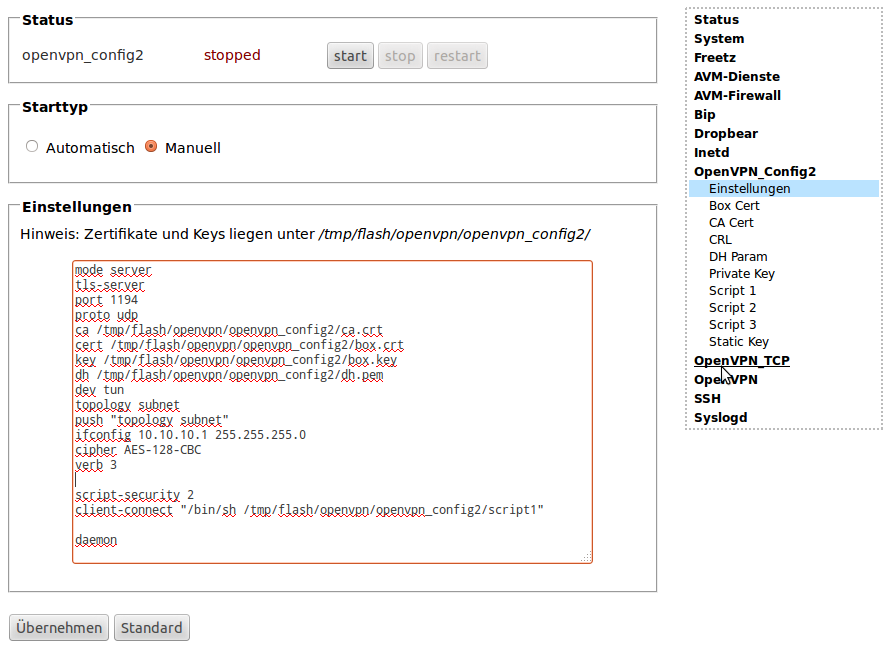
Currently, in the "trunk" (the Freetz development version), another GUI
has been added to the package. It is significantly "leaner" than the
previous one. It is intended as a "simple GUI" for experts who can enter
a configuration file directly.
Important:
- To be able to select this GUI, the "Level of user competence" must be
at least "Advanced".
Additional script files have been added as an option; these can be used,
for example, as "up" or "client-connect" scripts.
Here is an example for a server with certificates to which clients
connect, and to which networks should be routed. For this to work, in
addition to the "normal" routing, the server's internal routing must also
be configured; this requires "iroute" entries.
mode server
tls-server
port 1194
proto udp
ca /tmp/flash/openvpn/ca.crt
cert /tmp/flash/openvpn/box.crt
key /tmp/flash/openvpn/box.key
dh /tmp/flash/openvpn/dh.pem
dev tun
topology subnet
push "topology subnet"
ifconfig 10.10.10.1 255.255.255.0
cipher AES-128-CBC
verb 3

script-security 2
client-connect "/bin/sh /tmp/flash/openvpn/script1"

daemon
To assign IPs to the clients, "script1" is used here as the
client-connect script, similar to the "extended client config" of the
"old GUI". The idea/application should be self-explanatory, I hope:
#!/bin/sh
CLIENTS='name:ip mask:network1 mask1; network2 mask2
Client1:10.10.10.1 255.255.255.0:192.168.100.0 255.255.255.0
Client2:10.10.10.2 255.255.255.0:192.168.200.0 255.255.255.0
Client3:10.10.10.3 255.255.255.0:
Client4:10.10.10.4 255.255.255.0:192.168.104.0 255.255.255.0;192.168.105.0 255.255.255.0
client3:10.10.10.12 255.255.255.0:192.168.104.0 255.255.255.0;192.168.105.0 255.255.255.0
Client5:10.10.10.5 255.255.255.0'

# env will give name of connected client in variable "common_name"
X=$(echo "$CLIENTS" | sed -n "/^${common_name}:/ s/^${common_name}:// p")
CLIENTCONFIG=$1

# if found info on common name, generate client-config
if [ -n "$X" -a -n "$CLIENTCONFIG" ]; then
IP=${X%%:*}
NETS=${X##*:}
[ -n "$IP" ] && echo "ifconfig-push $IP" > $CLIENTCONFIG
[ -n "$NETS" -a "$NETS" != "$IP" ] &&  echo -e "iroute $NETS" |
    sed "s/[[:space:]]*;[[:space:]]*/niroute /g" >> $CLIENTCONFIG
fi
Creating Additional Configurations⚓︎
To create additional configurations, one manual call currently still has
to be made. For example, to create a config named OpenVPN_TCP:
http://fritz.box:81/cgi-bin/conf/openvpn?genconfigname=OpenVPN_TCP
ATTENTION: Do not use the config name "OpenVPN" or "openvpn"!