Tor 0.4.8.25/0.4.9.11⚓︎
- Homepage: https://www.torproject.org/download/tor/
- Manpage: https://trac.torproject.org/projects/tor/wiki/
- Changelog: https://gitlab.torproject.org/tpo/core/tor/tags
- Repository: https://gitweb.torproject.org/tor.git/
- Package: master/make/pkgs/tor/
- Steward: -
Tor is an anonymous communication system for the internet that makes
it possible to browse encrypted and securely. Installing a Tor
proxy on the Fritzbox helps protect your privacy. The Tor website
provides a good overview of how Tor works.
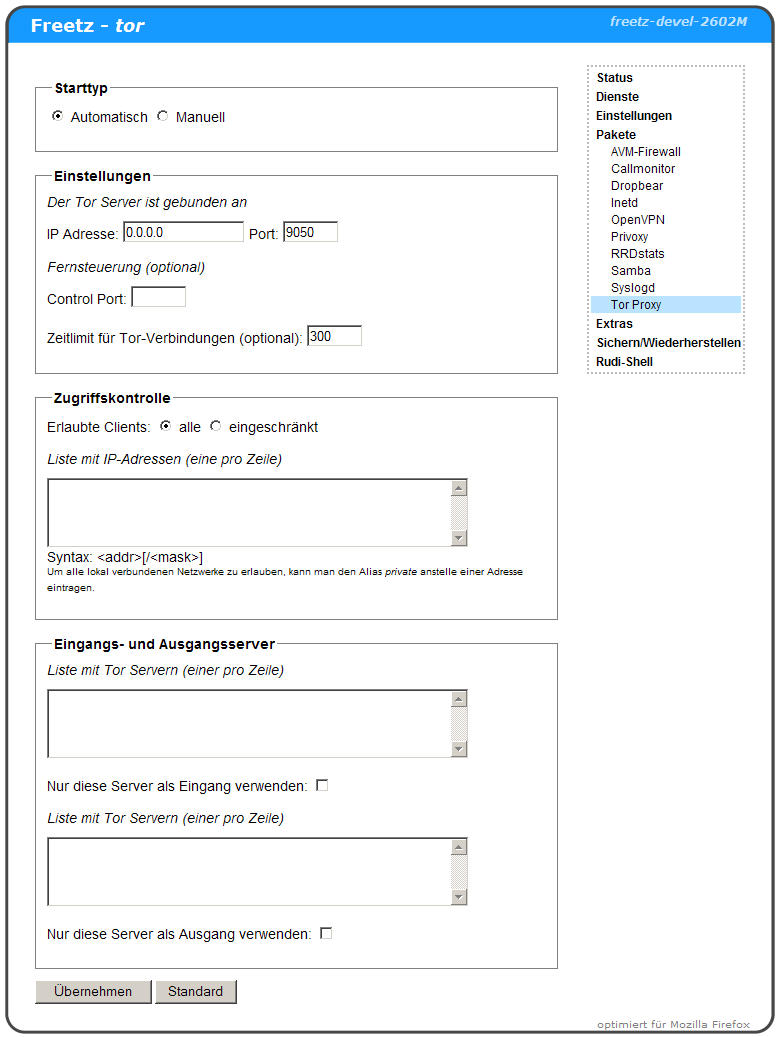
The Tor proxy package contains, in addition to a precompiled Tor proxy, a
simple client configuration and a small web frontend for configuring the
most important parameters and setting up a Tor server.
Use Tor as a Proxy⚓︎
Tor is a SOCKS
proxy. Any application that supports
the SOCKS protocol can be configured so that internet connections are
established through Tor. The Tor documentation gives numerous examples of
how to torify applications.
For Firefox users, useful add-ons such as
Torbutton
and FoxyProxy are available; they make it
possible to configure the connection through the Tor proxy with just a
few clicks.
For browsing with a web browser, Tor can also be operated together with
Privoxy so that complete anonymity while browsing is
ensured. Privoxy is also available as a Freetz package. As an alternative
to Privoxy, one can also use
Switchproxy
for Windows and Mac OS.
The easiest way to check whether the connection actually runs through the
Tor network is with the Tor Detector.
Tor and Privoxy⚓︎
For use with Privoxy, make sure that the Tor proxy is bound either to the
local address (setting 127.0.0.1) or to all addresses (setting
0.0.0.0). In addition, access from the local address 127.0.0.1 must
always be allowed.
Installation⚓︎
Simply select Tor when building in
menuconfig.
Optimize Speed⚓︎
Since version 0.5, "Tor speed optimization" is possible, as originally
described
hier
here. Anyone who prefers to choose the servers manually can also find
here or
here lists of active Tor servers and
their locations.
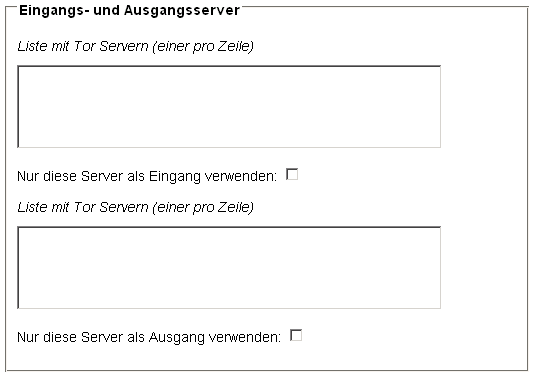
The entry and exit nodes must be specified with their TOR aliases, for
example "blutmagie" and "chaoscomputerclub23". Other attempts such as IP
or DNS names do not work here.
Set Up Tor as a Server⚓︎
When Tor is operated as a server, the FritzBox participates in routing
traffic in the Tor network and helps make the network more powerful. The
basics can and should be read on the Tor project's
documentation page.
Since the parameters for limiting the daily, weekly, or monthly total
data volume are currently not yet configurable through the web interface,
only flat-rate users should set up a Tor server.
For the Tor server to run stably, swap storage must be configured for the
FritzBox (see Howto create a swap file).
The most important options for server operation can be configured through
the web interface:
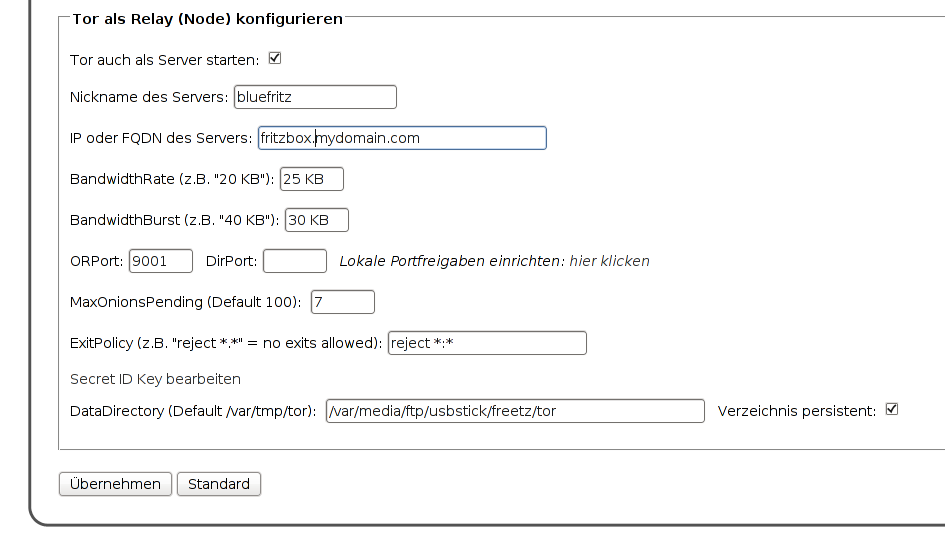
The options correspond to those in the torrc configuration file. The
nickname of the server can be chosen freely. If no IP or FQDN is
specified, Tor tries to find its own IP address. However, specifying an
FQDN of the FritzBox is more reliable; it can be set up, for example,
via DynDNS and automatically updated with inadyn.
Important for operating the Tor server are the BandwidthRate and
BandwidthBurst options, which set the bandwidth made available to the Tor
network. Since Tor is relatively resource-hungry in server mode, this
should not be overdone even if more bandwidth is available; upload is the
decisive factor. The same applies to the MaxOnionsPending option. If a
value that is too high is set here, the FritzBox may reboot. A value
below 10 has proven useful on a FritzBox 7170.
The ORPort is the port through which the Tor server must be reachable
from the outside. Therefore, a local port forward to 0.0.0.0 must be set
up for the ORPort. The easiest way to do this is via the Freetz package
avm-firewall. A DirPort does not have to be specified;
then no DirectoryService is provided, which is not required for operating
the Tor server and saves resources.
Attention: In the default configuration, Tor runs only as an entry or
middle node, but [not] as an exit node. This means that no other Tor user
browses the internet with the external IP address of the FritzBox, and
therefore your own IP address does not appear in any server logs. Anyone
who wants to change this and knows exactly what they are doing can change
the ExitPolicy.
The Secret ID key of the Tor server normally does not have to be edited.
The Secret ID key is generated automatically when the Tor server is first
started and saved in the box's flash memory when it exits. The
"DataDirectory" / persistent options can be used to specify the directory
in which Tor stores the data required for server operation. The data
needed for client mode, especially the current directory of reachable Tor
nodes, is also stored here. For example, a directory on USB storage can
be specified; if the directory does not exist, it is created.
Remote Control⚓︎
For remote controlling Tor you can use
Vidalia.
Configuration for the Tor server on your box:
- Control Port: 9051 (the default port, you can use any port you like)
- Control Interface: 192.168.178.1
- Control Password Hash:
- generate on your box with tor ---hash-password your_password
- copy the whole last line
Vidalia configuration:
- Address/ Port of Tor Instance: 192.168.178.1/9051 (should match that
of the server) - Tor Password: plain, un-hashed password
obfsproxy⚓︎
- Information
- Patch in Ticket #1712
Memory Usage⚓︎
Huge.
After ten minutes:
VmSize VmRSS
17284 kB 8660 kB
Dependencies⚓︎
Tor requires the libraries zlib, openssl, and libevent. These are also
included in current Freetz versions and are installed automatically as
soon as the TOR package is selected in menuconfig.
Discussion⚓︎
Questions and comments about this package are preferably discussed in this
Thread
.