vsftpd 3.0.5⚓︎
- Homepage: http://vsftpd.beasts.org/
- Manpage: https://security.appspot.com/vsftpd/vsftpd_conf.html
- Changelog: https://security.appspot.com/vsftpd/Changelog.txt
- Package: master/make/pkgs/vsftpd/
- Steward: @fda77
vsFTP stands for very secure File Transfer
Protocol. vsftpd offers, for example,
the following features:
- virtual IPs
- virtual users
- configuration per user, per source IP
- limits per source IP
- bandwidth limitation (Bandwidth
throttling) - IPv6
- SSL encryption
Known Problems⚓︎
With 7520/7530 07.25, the box crashes when establishing a connection to
the FTP server. This is not a general ARM problem, because ARM repeaters
do not crash. It is probably a bug or misconfiguration in the kernel
(AVM-PA, etc.). As a workaround, enter this in the WebIF under vsftpd in
Additional configuration options (for experts): isolate_network=NO.
See https://github.com/Freetz-NG/freetz-ng/issues/236
Including the Package in the Image⚓︎
In menuconfig under Package selection ---> Standard packages --->, you
will find
- Vsftpd 2.x.y
This enables FTP access via vsFTP.
Related Topics⚓︎
Under Patches --->, you will find
- Patch USB storage names ... with additional subitems.
This gives the USB storage a consistent name. - Execute autorun.sh/autoend.sh script on (un)mount
Executes the corresponding scripts when USB storage is plugged in or
removed.
Setting Up Shares and Users for vsFTP in Freetz⚓︎
The following is a detailed guide for creating FTP shares and users with
different read/write rights. It works independently of Linux access
rights and can therefore also be used for FAT and NTFS disks. With the
current Linux kernel, however, read/write rights can only be set at user
level, not at folder level.
Here is an overview of the folders created in this guide with access
restrictions for two regular users (user1, user2) and one guest account
(gast).
- Folder -> Authorized users
- user1 -> user1
- user2 -> user2
- shared -> user1, user2
- public -> user1, user2, gast
These can easily be adapted to your own needs.
Prepare the Folder Structure on the USB Disk⚓︎
Create the following folders in the root directory of the disk:
user1        #home directory user1
user1/shared
user1/public
user2        #home directory user2
user2/shared
user2/public
shared       #shared folder user1, user2
public       #home directory gast
Disable AVM's FTP Solution⚓︎
fritz.box -> Settings -> Advanced Settings -> USB Devices ->
USB Storage -> Enable USB storage FTP access -> remove the checkmark.
This is not strictly necessary if vsftpd runs on a port other than 21.
Set Service Settings in the Freetz Menu⚓︎
Packages -> vsftpd
Start type -> automatic
-> Access
This ensures that only the named users can access the server, and only
their own directory. If the AVM FTP server is used in parallel, the
checkmark at Allow ftpuser login must also be set here.
-> Additional configuration options (for experts)
Later, write permissions for the users will be defined separately.
->Apply<-
Saving settings...done.
Saving vsftpd.cfg...done.

Writing /var/flash/freetz...done.
10752 bytes written.
Start Telnet Access⚓︎
Services -> telnetd -> start
Now continue on the command line.
Create the Local Users⚓︎
Each user receives an explicit home directory, which vsFTP adopts
automatically.
adduser -h /var/media/ftp/uStor01/user1 user1
adduser -h /var/media/ftp/uStor01/user2 user2
adduser -h /var/media/ftp/uStor01/public gast
/var/media/ftp/uStor01/ # adduser -h /var/media/ftp/uStor01/user1/ user1
adduser: /var/media/ftp/uStor01/user1/: File exists
Changing password for user1
New password:
Retype password:
Password for user1 changed by root
/var/media/ftp/uStor01/ # adduser -h /var/media/ftp/uStor01/user2/ user2
adduser: /var/media/ftp/uStor01/user2/: File exists
Changing password for user2
New password:
Retype password:
Password for user2 changed by root
/var/media/ftp/uStor01/ # adduser -h /var/media/ftp/uStor01/public/ gast
adduser: /var/media/ftp/uStor01/public/: File exists
Changing password for gast
New password:
Retype password:
Password for gast changed by root
The new login data is saved for now.
/var/media/ftp/uStor01/technik # modsave all
Saving users, groups and passwords...done.
Saving config...done.
Writing /var/flash/freetz...done.
10752 bytes written.
Bind the shared and public Directories into the Users' Home Directories⚓︎
This should always be ensured when the USB disk is connected to the
FritzBox. For this, the file autorun.sh is created in the root
directory of the USB disk. To also remove the mounts again after the disk
has been properly detached, write unmount commands into autoend.sh.
/var/media/ftp/uStor01/autorun.sh
mount -o bind /var/media/ftp/uStor01/shared /var/media/ftp/uStor01/user1/shared
mount -o bind /var/media/ftp/uStor01/shared /var/media/ftp/uStor01/user2/shared

mount -o bind /var/media/ftp/uStor01/public /var/media/ftp/uStor01/user1/public
mount -o bind /var/media/ftp/uStor01/public /var/media/ftp/uStor01/user2/public
/var/media/ftp/uStor01/autoend.sh
umount /var/media/ftp/uStor01/user1/shared
umount /var/media/ftp/uStor01/user2/shared

umount /var/media/ftp/uStor01/user1/public
umount /var/media/ftp/uStor01/user2/public
Set FTP Write Permissions for the Users⚓︎
For this, each user receives a file with their file name in the folder
/var/media/ftp/uStor01/vsftp_user_conf/. This file defines whether the
user has write permission or not.
/var/media/ftp/uStor01/vsftp_user_conf/user1
/var/media/ftp/uStor01/vsftp_user_conf/user2
/var/media/ftp/uStor01/vsftp_user_conf/gast
These user files can also be used to forbid individual FTP commands
(list) for users.
To do this, add the following line to the file and remove the unwanted
commands:
cmds_allowed=ABOR,ACCT,ALLO,APPE,AUTH,CDUP,CWD,DELE,EPRT,EPSV,FEAT,HELP,LIST,MDTM,MKD,MODE,NLST,NOOP,OPTS,PASS,PASV,PBSZ,PORT,PROT,PWD,QUIT,REIN,REST,RETR,RMD,RNFR,RNTO,SITE,SMNT,STAT,STOR,STOU,STRU,SYST,TYPE,USER
Alternatively, individual FTP commands can also be forbidden (from
vsftpd version 2.1.0):
Note: If forbidding commands via cmds_denied= as described above
did not work, there is another way to forbid executing commands for some
users.
This is also solved via the user files. Add the following line to the
file and remove the commands that the user must not execute:
cmds_allowed=ABOR,ACCT,ALLO,APPE,AUTH,CDUP,CWD,DELE,EPRT,EPSV,FEAT,HELP,LIST,MDTM,MKD,MODE,NLST,NOOP,OPTS,PASS,PASV,PBSZ,PORT,PROT,PWD,QUIT,REIN,REST,RETR,RMD,RNFR,RNTO,SITE,SMNT,STAT,STOR,STOU,STRU,SYST,TYPE,USER
Example: user1 may copy files to the FTP server and create
directories, but may not delete them again. The following must therefore
be in the file:
cmds_allowed=ABOR,ACCT,ALLO,APPE,AUTH,CDUP,CWD,EPRT,EPSV,FEAT,HELP,LIST,MDTM,MKD,MODE,NLST,NOOP,OPTS,PASS,PASV,PBSZ,PORT,PROT,PWD,QUIT,REIN,REST,RETR,RNFR,RNTO,SITE,SMNT,STAT,STOR,STOU,STRU,SYST,TYPE,USER
DELE (Delete file) and RMD (Remove a directory) were removed
from the string specified above.If something still does not work, simply restart the router (reboot the
FritzBox).
A list of all FTP commands and their meanings can be found here:
list
That's It!⚓︎
The folders can now be reached via FTP
(ftp://fritz.box) using the given login data.
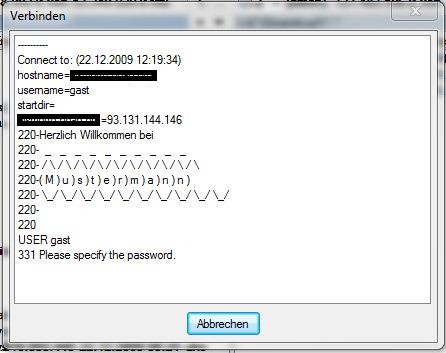
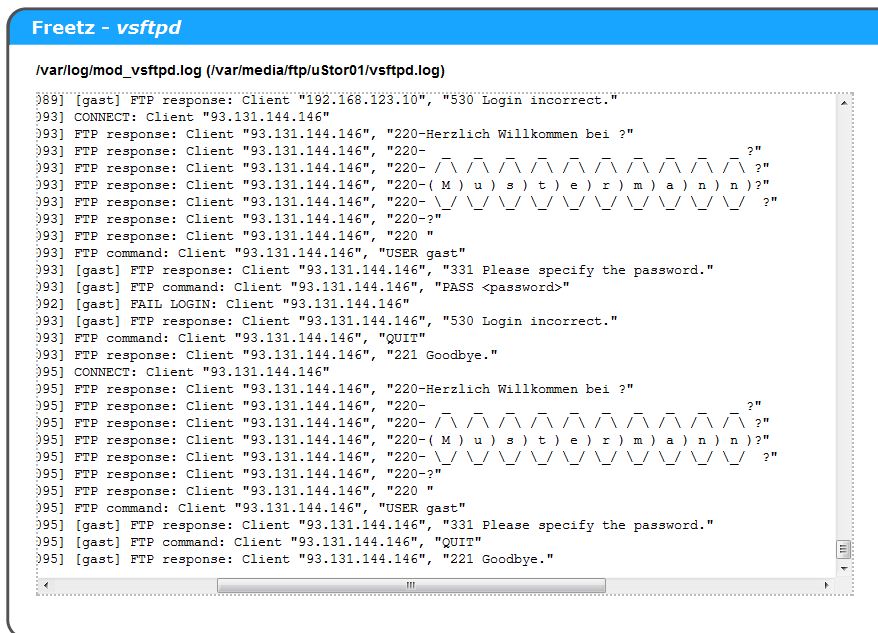
Changing the vsftpd Login Screen⚓︎
This briefly describes how to change or customize the login screen of
VSFTP.
- Create the following file:
Name: ftp-startbild
Content:
Welcome to
  _   _   _   _   _   _   _   _   _
 /  /  /  /  /  /  /  /  /  /
( M ) u ) s ) t ) e ) r ) m ) a ) n ) n )
 _/ _/ _/ _/ _/ _/ _/ _/ _/ _/
This page is very helpful when creating the lettering:
AsciiArt Generator
(font: Bubble)
-
Then simply store this file on your hard disk.
Location: /var/media/ftp/uStor01/ -
Now this file only needs to be integrated into Freetz via the WebIF.
To do this, open the VSFTP menu in the Freetz WebIF and enter the
following entry under Additional configuration options (for
experts).

- Now just apply, and your box / FTP should report with the new login
screen.
Further Links⚓︎
- Project Homepage
- IPPF
thread:
active/passive FTP to the box from outside with vsftpd on the box - IPPF
thread:
vsFTP and Samba with user rights for a FAT32 USB disk