Rudi Shell⚓︎
"Rudi" stands for rudimentary, because this is a rudimentary shell
replacement via a CGI interface. I had started to make it rather complex
and then thought better of it: small is beautiful. Rudi can now do no
less than originally planned, but the interface is more purist than it
was during the first development phase. Not least, the CGI source files
have also become much smaller and simpler. More purist interfaces, on the
other hand, require a little more documentation, so below I describe,
partly with pictures, what can be done with Rudi. In short: everything!
Feature Overview⚓︎
With Rudi, the following can be done directly through a web interface:
- Execute arbitrary shell scripts on the FritzBox, either typed or
inserted into the command window via copy and paste. Root rights are
self-evident. - Browse an arbitrarily long history of the most recently entered
commands and outputs (!), edit old commands or scripts and/or execute
them again. - Choose whether the command output as text should be displayed
inline in the browser or saved as a file download. This concept is
very powerful, because for example the output of a tar command can
be redirected so backups of arbitrary files or directories can be
created easily. - Upload local files, including archives, to any destination on
the box in order to process them there later with additional commands:
unpack an archive, apply a patch fordebug.cfg, overwrite read-only
files for testing with a shadow copy using mini_fo (if installed),
and so on.
System Requirements⚓︎
I developed the Rudi Shell for the Danisahne mod, more precisely for
Oliver's (olistudent) version with kernel 2.6. I specifically tested it
on my FritzBox Fon WLAN 7170 with firmware 29.04.29, ds-0.2.9_26-13,
kernel 2.6.13.1, Busybox 1.4.1, Haserl 0.9.16 CGI handler. In principle,
in my opinion, the following should be sufficient (without DS-Mod/Freetz):
Server⚓︎
- any box, assuming enough space to store and run Rudi
- any kernel, 2.4.x or 2.6.x
- any Busybox version with httpd and sed
- any Haserl version, for example the
current stable 0.8.0
Client⚓︎
- Web browser with enabled
JavaScript; tested with
IE7, Opera 9.10, Firefox 2.0.0.2. A little JavaScript is used to
navigate in the
DOM, control
the history, execute
CGI
subprocesses in an invisible
IFrame, and update the main
page with their results (console output).
What Is NOT Needed⚓︎
- On the server, neither Telnet nor SSH nor
OpenVPN is required in principle. That means
Rudi should be interesting especially for "weak" boxes with little
memory. - A filesystem connection in any direction is also not required. That
means we need neither Samba, nor smbmount, nor
NFS. - No file-transfer connection via FTP is required; everything runs over
HTTP, including uploads and downloads. - No external storage medium (USB stick, hard disk), and thus no USB
port on the box, is needed for data exchange.
Space Required by the Rudi Shell⚓︎
- The patch consists of three CGI scripts with the outrageous ;-) total
size of 3.5 KB, plus possibly one text line for the Freetz menu. - Haserl is added to that. The binary of my version 0.9.16 for kernel
2.6 is just under 24 KB. By comparison, bftpd
alone is 67 KB (and can do less with it!), and
Dropbear is huge at 179 KB. A
Samba server weighs in at almost 900 KB. - Rudi does not use temporary files on its own for the scripts to be
executed or the command output. Everything runs directly through
anonymous
UNIX pipes,
from input through processing to output. Space in the filesystem is
needed only if the user creates files themselves through output
redirection or file uploads.
How It Works⚓︎
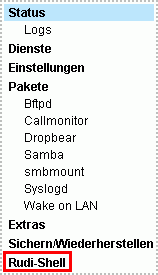
Entry to the Rudi Shell in Freetz is through the main menu; see the
image. It can also be reached directly at
http://fritz.box:81/cgi-bin/rudi_shell.cgi.
The interface presents itself as spartan but functional and consists of
the following elements:
- Multi-line input window for
UNIX shell scripts. The
standard shell/bin/shof Busybox, known from the original firmware,
is used: ash, a
Bourne shell
variant. - Execute button to send the scripts to the FritzBox and run them
there. - Result output, scrollable, in the lower window area. Standard and
error output of the shell are redirected there unless specified
otherwise. - Command history, consisting of a numbered selection list. #0 is
always the most recently entered command sequence; higher numbers are
correspondingly older scripts. The number of entries is fundamentally
unlimited. If the browser eventually becomes slower because it buffers
too much information, simply press the Delete button. - Download switch to receive command output as a file instead of on
the console. Normally the download has the name rudi_download,
which can be changed in the browser's save dialog. - If one of the file-extension switches (.tar, .gz) is also checked,
the corresponding extension, or both together as .tar.gz, is appended
to the suggested name. This is only for convenience; it can also be
done manually when saving. For users with a download manager and a
disabled save dialog, this is a little easier. Warning: the
switches do not change the file format, only the file extension. - File uploads are handled through the two text fields "source
file" and "destination file". The source file can be selected
directly through a file browser with "Browse"; the destination file
has the editable suggested name/var/tmp/rudi_upload. Of course, an
existing writable directory should be chosen. A non-existing one can
be created beforehand via command input. Warning: please do not
try to upload files to/var/flash. Always store them temporarily
somewhere else first and write them into tffs withcat.
Warning, especially important:
The Rudi Shell, especially the history, works without navigation on the
main page. That means you need neither the browser's Back/Forward buttons
nor Reload. On the contrary, if you use them, first the history is
deleted and second all switches and text fields are reset to their
default values.
For the technicians among us: everything dynamic in the Rudi Shell
happens either in an invisible IFrame or on the main page through
JavaScript-based DOM changes.
Illustrated Use Cases⚓︎
Execute a Shell Script⚓︎
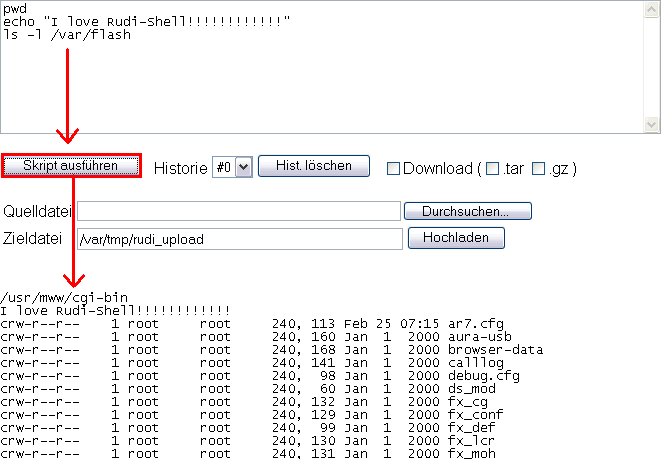
Enter command, execute, inspect result - done.
Use the History⚓︎
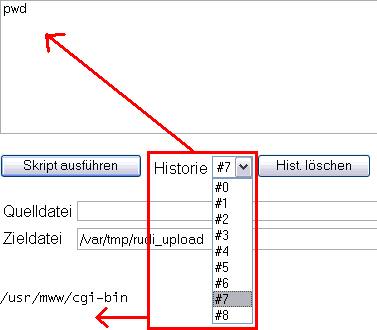
Open the history list, browse with mouse or keyboard. While browsing, the
command window and result console are already updated. Pressing the
"Delete history" button clears the history and makes it fresh again.
Download Tar Archive⚓︎
Using a command such as tar c *, an archive can be created, in the
example from all files and subdirectories in the current directory, which
when a shell script starts is always /usr/mww/cgi-bin because the CGI
scripts are executed from there. If the download switch is also activated
before execution and perhaps the .tar file-extension switch is checked
for convenience, the archive is received directly as a download and can
be saved wherever desired. Technically, what happens here is that the
standard output of the shell, since we did not specify a destination file
for tar, is redirected into the return channel of the CGI script to the
user's browser.
Troubleshooting: sometimes tar, or other shell commands, write
messages (errors, information, warnings) to a different output channel in
addition to the actual output, the so-called error output. Because in the
Rudi Shell, as in other interactive shells, standard and error output are
bundled without further precautions, information may end up in the
download that we do not want there. In the case of our tar archive,
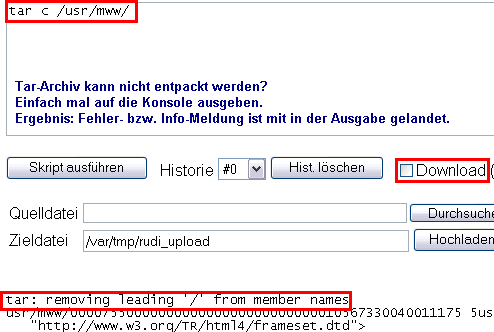
this "contaminates" the file and it can no longer be unpacked. To
diagnose this, we simply output the tar archive to the console instead
(download switch deactivated). It looks like this:
In principle, there are two ways to avoid such contamination. First, the
shell can be explicitly instructed to redirect error output to a file, to
another console, or into nowhere (/dev/null, the popular bottomless
barrel), as in the following example:
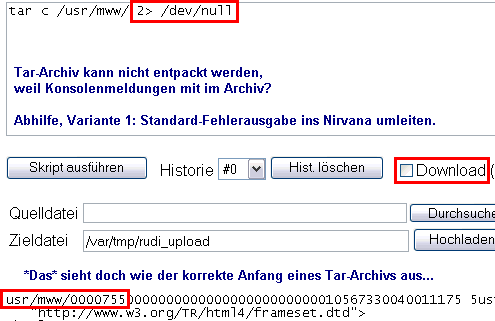
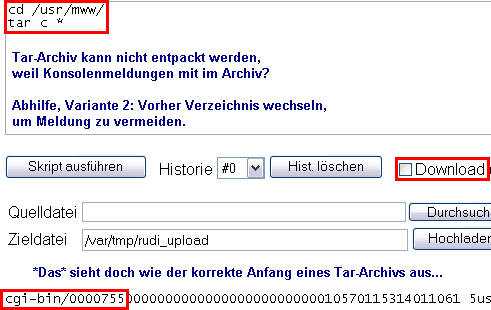
The second, somewhat less safe because it is not always predictable,
possibility is simply to avoid error output by checking command syntax,
required permissions, and so on beforehand. In our case, the message can
be avoided by first changing into the appropriate base directory from
which tar should operate:
Download Long Console Output⚓︎
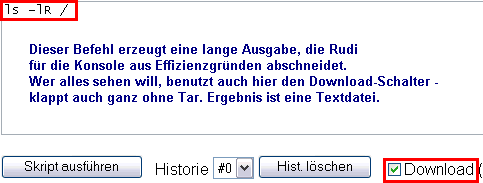
Long console outputs from a script are shortened by Rudi to just under 64
KB, because depending on the browser, copying several hundred KB of long
output from the invisible IFrame, where the original output initially
lands, can slow the browser extremely. Such long text is also hard to
analyze in the browser; it is better to do that offline in a powerful
editor with good search functions. An example of long output is
ls -leAR /, the detailed display of all files with full date and so on,
recursively starting at the root directory.
There are browser-dependent differences that affect how much of these 64
KB actually arrives in the main window during copying. Internet
Explorer does not cut off anything (it would also copy 1 MB and then,
for whatever reason, block for a while). Opera cuts the text at 32 KB,
Firefox already at 8 KB. Now 8 KB is not much, but in most cases it is
sufficient for normal commands. With regard to the history, which may
need to store many commands with their associated outputs, the limit is
also healthy.
Anyone who wants to enjoy long console output in full length can simply
activate the download switch and download the whole thing as a text file:
File Upload⚓︎
Executing commands and downloading files and console outputs are already
powerful tools, but working with the Rudi Shell only becomes really fun
with the ability to upload arbitrary files. It is very simple:
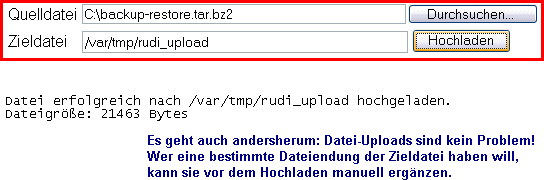
For technicians: this is a normal form-based upload according to RFC
1867.
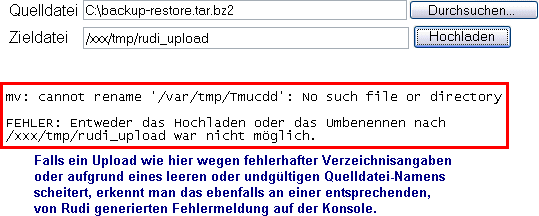
Something can also go wrong during upload. Then a corresponding,
reasonably informative system response is needed. This is also provided;
it looks like this:
Limits & Restrictions⚓︎
As mentioned, there are hardly any limits to what can be done with the
Rudi Shell on and with the box. One thing that could still be improved
would be to give the user an interactive shell session that survives
the invocation of a script. That would mean, for example, that changing
directory in script A would still affect the subsequently executed script
B and not only A. Environment variables changed or set in A would also
still apply in B, and so on. Achieving that would not be especially
difficult. All that would be needed is a virtual terminal. I have
installed Screen, for example. The nice thing
about this tool is that it can be used not only interactively at the
console, but commands can also be sent by remote control to a detached
session, a user session separated from the terminal, and executed inside
that session. In combination with a log file or a named
pipe, the outputs could then
be read from outside and passed to the web client. This is exactly the
feature I had originally wanted to implement, but that was back when I
was thinking of one-line commands instead of a multi-line script window.
By now I find it simpler, more elegant, and above all leaner this way.
Users of small boxes do not need to add Screen to the firmware just to
get a little more comfort in the user session. Potential problems with
multiple logins to the same Screen session and so on would also have to
be handled. I do not need that. Whoever wants it: I have formulated the
idea, the path is laid out. I have already tried Screen remote control
via command line; it works well.
What else does not work? Well, it makes little sense to call programs
that are useless without user interaction, for example
Midnight Commander (mc), tail -f, paged output with
more, or the non-automatically terminating variant of top. I am not
even talking about interactive editors such as vi; there is sed and
awk for command-line-based editing. For interactive work, there are
downloads and uploads, with offline editing on the client in between, of
course.
Tips & Tricks⚓︎
Secure Access via HTTPS⚓︎
Warning:
This guide was written before AVM integrated its own remote access
function, which is why it is not mentioned here.
Now we finally have a shell that runs through a pure web interface, so we
are independent of Telnet, SSH, and company.
What would be nice now: secure access to the Rudi Shell, or preferably to
the entire Freetz configuration, from outside through an
SSL-secured
connection. We could then configure our router from the office or from
any internet cafe in the world without having to worry about proxies or
port restrictions. Port 443 for
HTTPS
is enabled on 99% of all proxies. We would not need an SSH client and
would still have a securely encrypted connection from browser to router.
That is exactly what we configure now. First we need firmware with the
package stunnel. Incidentally, the package
automatically activates the two shared libraries for
OpenSSL, namely libcrypto.so
and libssl.so. In addition,
zlib (libz.so) is required.
Further tips and information:
- The space required by these packages should not be underestimated, so
this is nothing for small boxes: 90 KB for
stunnel, 70 KB for zlib, and no less than
1,150 KB for OpenSSL. That is almost 1.3 MB and therefore a lot.
But if the box can handle it (my 7170 can), we will soon have a lot
of fun. - Anyone using firmware with OpenSSL libraries from AVM, for example
the current 29.04.59 for the 7170, must make sure to set the option
enabled = no in/var/flash/tr069.cfg, if present, before
installing firmware with their own libraries (or else remove all the
TR-069
stuff while creating the
image). Otherwise, boxes from 1&1 would have problems calling the
OpenSSL libraries replaced by Freetz. Some providers such as 1&1
require TR-069 to be enabled in the box for support requests!
Next we need a server certificate and key pair for the HTTPS server. We
build them ourselves with OpenSSL. This works under Linux basically the
same way as under Windows; you should only make sure as a precaution that
the key file that eventually lands on the box has UNIX line endings. I
explain below how generating a
self-signed key
works under Linux. It is enough to run the following script:
    #!/bin/bash

    # Create password-protected server key
    openssl genrsa -des3 -out server.key 1024

    # Extract unprotected version (the SSL server cannot enter a
    # password itself before use)
    openssl rsa -in server.key -out server.key.unsecure

    # Create certificate signing request (CSR) with personal data
    openssl req -new -key server.key -out server.csr

    # Request a self-signed certificate valid for one year
    openssl x509 -req -days 365 -in server.csr -signkey server.key -out server.crt

    # CSR is no longer needed
    rm server.csr

    # Merge key + certificate (in this order!)


    # into one file
    cat server.key.unsecure server.crt > stunnel-key.pem

    # Check whether everything is there
    ls -l
During the process, a passphrase for the server key and personal data for
the certificate have to be entered. Including input and output, it looks
like this, for example:
    $ openssl genrsa -des3 -out server.key 1024
    Generating RSA private key, 1024 bit long modulus
    ..................++++++
    .......++++++
    e is 65537 (0x10001)
    Enter pass phrase for server.key:
    Verifying - Enter pass phrase for server.key:

    $ openssl rsa -in server.key -out server.key.unsecure
    Enter pass phrase for server.key:
    writing RSA key

    $ openssl req -new -key server.key -out server.csr
    Enter pass phrase for server.key:
    You are about to be asked to enter information that will be incorporated
    into your certificate request.
    What you are about to enter is what is called a Distinguished Name or a DN.
    There are quite a few fields but you can leave some blank
    For some fields there will be a default value,
    If you enter '.', the field will be left blank.
    -----
    Country Name (2 letter code) [AU]:DE
    State or Province Name (full name) [Some-State]:Bavaria
    Locality Name (eg, city) []:Munich
    Organization Name (eg, company) [Internet Widgits Pty Ltd]:ACME Ltd.
    Organizational Unit Name (eg, section) []:
    Common Name (eg, YOUR name) []:Manni Muster
    Email Address []:manni@acme.de

    Please enter the following 'extra' attributes
    to be sent with your certificate request
    A challenge password []:
    An optional company name []:

    $ openssl x509 -req -days 365 -in server.csr -signkey server.key -out server.crt
    Signature ok
    subject=/C=DE/ST=Bavaria/L=Munich/O=ACME Ltd./CN=Manni Muster/emailAddress=manni@acme.de
    Getting Private key
    Enter pass phrase for server.key:

    $ rm server.csr

    $ cat server.key.unsecure server.crt > stunnel-key.pem

    $ ls -l
    insgesamt 16
    -rw-r--r-- 1 ubuntu ubuntu  895 2007-02-26 21:50 server.crt
    -rw-r--r-- 1 ubuntu ubuntu  963 2007-02-26 21:41 server.key
    -rw-r--r-- 1 ubuntu ubuntu  887 2007-02-26 21:42 server.key.unsecure
    -rw-r--r-- 1 ubuntu ubuntu 1782 2007-02-26 22:00 stunnel-key.pem
Afterwards we have what we wanted in the form of the file
stunnel-key.pem: a self-signed key pair for our HTTPS server. It now
only has to get onto the box somehow. There are two ways:
- Include it in the firmware: simply copy it to the desired location
under<Mod-Verzeichnis>/root, for example to
/usr/share/stunnel-key.pem. - Include it in
/var/flash/debug.cfgor/tmp/flash/rc.customin the
usual form of a here-document, which is unpacked when the box boots,
for example to/tmp/stunnel-key.pemor to
/mod/usr/share/stunnel-key.pem. The
here-document can look
like this:
Wherever the key file is located, in the stunnel configuration we only
need to refer to the correct storage location. On we go:
Through the Freetz interface, we ensure that stunnel is started
automatically as a service and enter the following configuration under
Settings → stunnel services to make the very web interface we are using
available through HTTPS in the future:
This means nothing other than that we make available a service named
Freetz by us, accepting incoming SSL connections on HTTPS port 443 and
forwarding them after decryption to port 81 of the Freetz web server.
Important: the whole thing runs not in client mode, but in server mode.
That is all. Now we can try what happens when we call
https://fritz.box. First the Freetz password dialog
and then the web interface should appear.
If we now also want services for port 80 (AVM interface) and/or port 82
(WOL interface), we simply add corresponding
sections to the configuration following the pattern above.
Warning: To make the HTTPS port or ports available externally, either
the usual settings must be made in /var/flash/ar7.cfg, for example the
following section under forwardrules,
or a corresponding port
forwarding must be
configured to a virtual interface through the AVM interface. We need the
whole thing for each service, which means we have to decide which service
gets the "premium port" 443 that should be reachable from everywhere. I
suggest giving this port to the Freetz interface, because this gives us
access to the Rudi Shell and thus lets us do everything we want with the
box.
Important: it probably needs no further explanation why, in this
scenario, a secure password for the web interface is especially important.
HTTPS Access Reloaded & Improved⚓︎
The prospect of a package of 1,310 KB in my case for the solution
described above is of course a knockout criterion for small boxes that
already have to manage the storage space for a firmware mod carefully.
Anyone who needs OpenSSL on the box for something else anyway will hardly
notice the additional 160 KB for stunnel + zlib. But anyone who needs
SSL only for the HTTPS server would surely be happy about a leaner
variant. The nice thing is: there is one.
There is an open-source SSL library optimized for embedded systems called
matrixssl. In addition, someone wrote the
small wrapper matrixtunnel
for OpenWRT, which will be our alternative to
stunnel. The whole thing was also already
available as a package for Freetz. It is a package and library with a
total size of 110 KB (!). That corresponds to a space saving of about 92%
compared with the first solution and, based on my experience so far,
works just as well. Subjectively, browsing with either HTTPS variant is
not as fast as without encryption, but absolutely fine for working.
Meanwhile, xrelayd, the successor to
matrixtunnel}, has also been added to Freetz. Here xyssl} (now polarssl)
is used as the crypto library.
The call, best placed in one of the files executed at startup (see the
description of the stunnel variant), looks like this as an example:
Incidentally, I use the same filename for -A and -p and the same
combined file with server key and certificate as for stunnel (build
instructions above). If -f is also given, the server starts in the
foreground and the output can be observed. There is also a debug switch;
just call it with -? and look.
By the way, matrixtunnel can also use a different rule for each interface
(IP address). Simply specify the IP address before the port (ip:port),
for example:
    # ds_mod web over SSL on LAN
    matrixtunnel -A mycert.pem -p mycert.pem -d 192.168.1.1:443 -r 192.168.1.1:81 -P /tmp/matrixssl.pid
    # own website over SSL on virtual IP for external access
    matrixtunnel -A mycert.pem -p mycert.pem -d 192.168.1.253:443 -r 192.168.1.253:82 -P /tmp/matrixssl.pid
Flash Firmware Remotely⚓︎
This also works wonderfully with Rudi, as I described some time ago in a
forum
post. Here is the
code again, which can be executed in the Rudi Shell all at once. Before
that, it is best to stop a few Freetz services that are not known to the
AVM script called in the code and would therefore keep running and use
memory.
    # Before we begin, a background command: if necessary, force a reboot
    # in 10 minutes; that should be enough for download + FW update.
    { sleep 600 ; reboot -f; } &

    {
    # Stop unnecessary services, but leave websrv and dsld running
    prepare_fwupgrade start_from_internet
    # Download FW image and unpack directly to "/"
    wget -q -O - http://mein.server.xy/mein.image 2> /dev/null | tar -C / -x
    # Stop remaining services
    prepare_fwupgrade end
    # Prepare installation
    /var/install
    # Initialize installation
    /var/post_install
    # Reboot box
    reboot
    }
Incidentally, this code works not only in the Rudi Shell, but also in
principle within a Telnet or SSH session.